When you download your orders from the Meesho supplier panel, the label sits on a full PDF page with a lot of empty space around it. Printing that page wastes paper and does not fit a thermal label roll. This guide shows how to crop the label with the free Meesho Label Cropper so it is ready to print on a 4×6 thermal printer or on a normal A4 printer.
Which printer layout should you choose?
The tool offers two layouts, so pick the one that matches the printer you use:
- Thermal Printer (4×6): one cropped label per page, sized for a 4×6 inch label roll.
- A4 Printer (4-in-1): four cropped labels on one A4 sheet, which saves paper if you print on plain sheets and cut them.
How to crop Meesho labels, step by step
- Download your label PDF. Get the shipping label PDF for your orders from your Meesho supplier panel and save it on your phone or computer.
- Open the tool. Go to the Meesho Label Cropper.
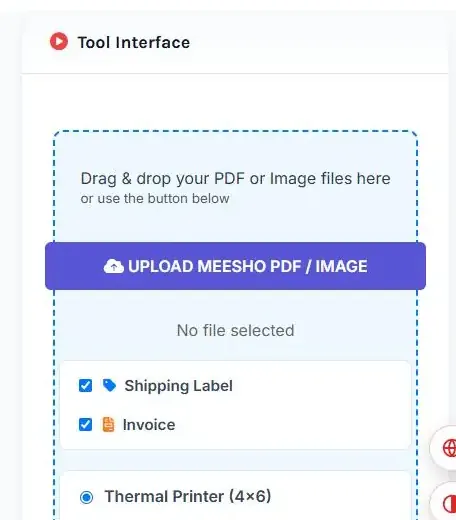
- Upload the file. Use the Upload Meesho PDF / Image button and select your PDF. The tool also accepts JPG, PNG and WEBP images.
- Choose what to extract. Tick Shipping Label, Invoice, or both.
- Choose the printer. Select Thermal Printer (4×6) or A4 Printer (4-in-1).
- Click Crop Labels. The tool finds the shipping label area on each page and crops it.
- Download the print-ready PDF. Open it once and check that the address and barcode are fully visible before you print.
Tips before you print
- Print one label first on a test page. Make sure the barcode is sharp and not cut off.
- If you have a very large batch, split it into smaller files with Split PDF so it is easier to print and check.
- If you need to join labels from several downloads into one file, use Merge PDF first and crop afterwards.
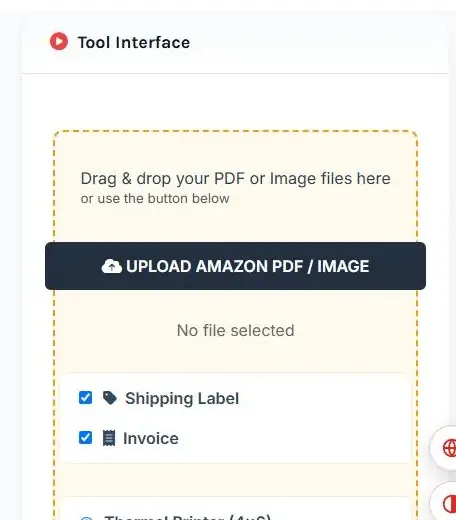
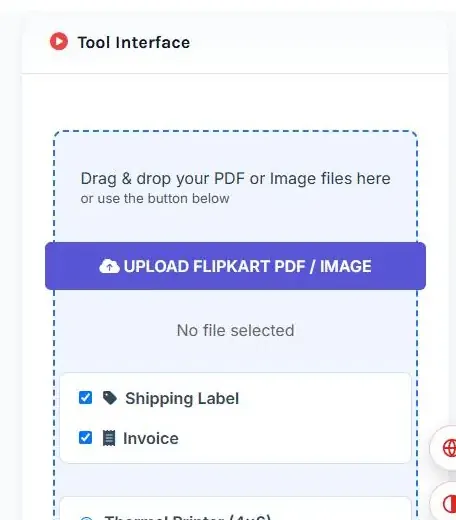
- Selling on more than one marketplace? See our guides for the Flipkart label and the Amazon label, or open the Seller Tools page.
Why cropping the label saves time and money
A full size page printed for a single label uses a lot of paper and, on a thermal printer, can leave you with a label that does not fit the roll. A cropped label fits the sticker exactly, prints faster and looks neater on the parcel. If you ship dozens of orders a day, the saving in paper, ink and time adds up quickly. Couriers also scan small clean labels more reliably than labels with extra text and blank margins around them.
Thermal printer or A4: how to decide
- Choose thermal 4×6 if you already own a thermal printer. Each page is one label, so you can print the whole file and peel the stickers straight onto parcels.
- Choose A4 4-in-1 if you only have a normal inkjet or laser printer. Print on plain paper or sticker sheets, cut the four labels apart and stick them on the packets with tape or glue.
- If you are unsure, crop one small test file in both layouts and print them. It takes a minute and shows which one suits your setup.
A simple daily routine for sellers
- Download all new order labels once or twice a day instead of one by one.
- Merge multiple downloads into one PDF with Merge PDF so you crop everything in one go.
- Crop the file with the Meesho Label Cropper.
- Open the result and scroll through it. Check that the number of labels matches your order count.
- Print, pack and attach the labels, then keep the PDF for a few days in case a courier asks for a reprint.
Common problems and fixes
- The label is too small or too large when printed. In the print dialog choose “Actual size” or 100 percent, not “Fit to page”.
- Printer adds a blank page. Check that your paper size is set to 4×6 for thermal, or A4 for the 4-in-1 layout.
- Text is faint. Clean the print head, or increase the print darkness in your printer settings.
- The file is very large. Reduce the size with Compress PDF before saving or sharing it. Do not compress the barcode so much that it becomes blurry.
Privacy
Your PDF is processed in your browser and is not uploaded to our servers. See our Privacy Policy for details.
Frequently asked questions
Is the Meesho Label Cropper free?
Yes. You can use it without an account and without a watermark on the result.
Do I need to install anything?
No. It runs in your web browser on a computer or a phone.
Can I print four labels on one A4 sheet?
Yes. Choose A4 Printer (4-in-1) before you click Crop Labels.
The barcode looks cut off. What should I do?
Check the original PDF from your supplier panel first. If it is complete, try the other printer layout and download the file again.