Sending a spreadsheet as an Excel file is risky: the other person may not have Excel, columns can shift on a phone, and anyone can change a number by mistake. A PDF looks the same on every device and cannot be edited by accident, which is why offices, colleges and clients usually ask for one. Our free Excel to PDF Converter turns an .xlsx, .xls, .xlsm or .csv file into a PDF in your browser, with no software to install and no sign-up.
How to Convert an Excel File to PDF
- Open the Excel to PDF Converter.
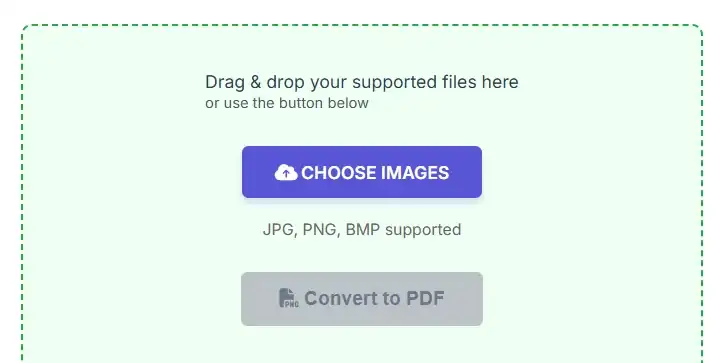
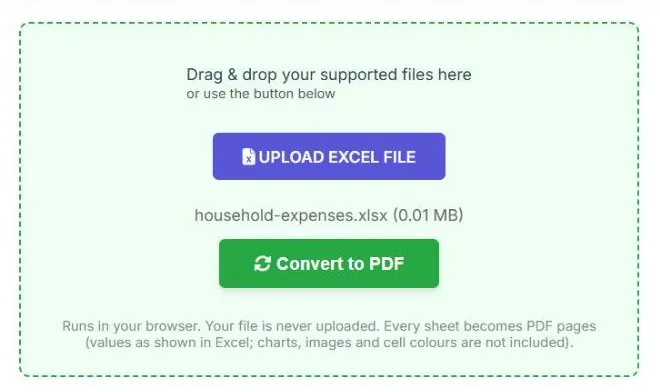
- Tap Upload Excel File and choose your spreadsheet, or drag and drop it into the green box. The file name and size appear under the button once it is loaded.
- Tap Convert to PDF.
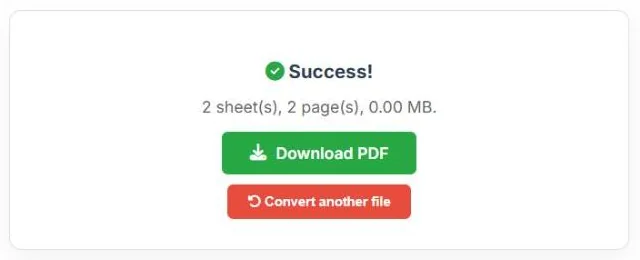
- When you see Success!, the tool tells you how many sheets and pages it made. Tap Download PDF to save the file.
- To convert another spreadsheet, tap Convert another file.
Open the downloaded PDF once and scroll through it before you email or upload it, so you know every sheet came out the way you expected.
What the PDF Looks Like
We tested the tool with a simple household budget workbook that had two sheets: a monthly expenses table and a short summary. The tool made a two-page PDF, one page for each sheet, with the sheet name printed at the top of the page and every cell laid out in a clean table with borders.
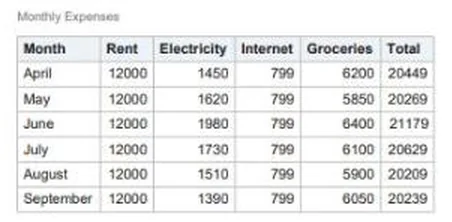
A few things to know about how the converter lays out your data:
- Every sheet is included. Each sheet starts on a new page, in the same order as the tabs in your workbook.
- Values appear as they are shown in Excel. Dates, currency and percentages keep the format you gave them. For a formula, the PDF shows its result, not the formula itself.
- Pages are A4 landscape. Landscape gives wide tables more room.
- Wide sheets are shrunk to fit. If the columns are too wide for the page, the table is scaled down a little. If it still does not fit, the remaining columns continue on the next page.
- Long sheets carry on over several pages, so nothing is cut off at the bottom.
- Very long text in one cell is shortened with “…” so it does not stretch the column across the page.
Charts, pictures and cell colours are not copied into the PDF; you get the values in a plain, easy-to-read table. If you need an exact copy of a colourful report with charts, use File → Save As → PDF in Microsoft Excel, or File → Download → PDF in Google Sheets.
Tips for a Cleaner PDF
- Delete or hide what you do not need. Remove empty columns, old working sheets and notes before converting, so the PDF only shows what the reader needs.
- Put a short title in the sheet tab. The tab name becomes the heading of each page, so “Q3 Sales” reads better than “Sheet1”.
- Format numbers first. Set currency, decimal places and date formats in Excel; the PDF copies what you see.
- Split very large workbooks. The converter handles up to 20,000 rows per sheet and up to 500 PDF pages per file. For bigger reports, convert them in parts and join the PDFs with our Merge PDF tool.
Is My Spreadsheet Safe?
Yes. The conversion happens in your browser, so your spreadsheet is turned into a PDF on your own device and is never uploaded to our servers. That matters for salary sheets, bank statements and client lists. Nothing needs an account, and closing the page clears the file.
Frequently Asked Questions
Which Excel files can I convert?
The tool accepts .xlsx (Excel 2007 and later), older .xls files, macro-enabled .xlsm files and .csv files. Macros are not run; only the values in the cells are used.
Can I convert Excel to PDF on my phone?
Yes. The converter works in Chrome, Safari and other mobile browsers. Tap Upload Excel File, pick the spreadsheet from your phone’s files or downloads, and the PDF is saved to your downloads.
Can I convert only one sheet?
The tool converts every sheet in the file. To get just one, make a copy of the workbook, delete the other sheets and convert the copy. You can also remove extra pages afterwards with our Delete PDF Pages tool.
The PDF is too big to email. What can I do?
Spreadsheet PDFs are usually small, but long reports can add up. Run the file through our free compressor; our guide on compressing a PDF without losing quality explains how to get under email and upload limits.
Is this Excel to PDF converter free?
Yes, it is completely free, with no watermark and no limit on how many files you convert.
Related Tools and Guides
- Convert PDF to Excel: go the other way and turn a PDF table back into an editable spreadsheet.
- Convert Word to PDF: turn letters, applications and reports into PDFs the same way.
- Merge PDF files: combine your spreadsheet PDF with other documents into one file.
- Password protect a PDF: lock a PDF that contains salaries, accounts or other private figures before you share it.