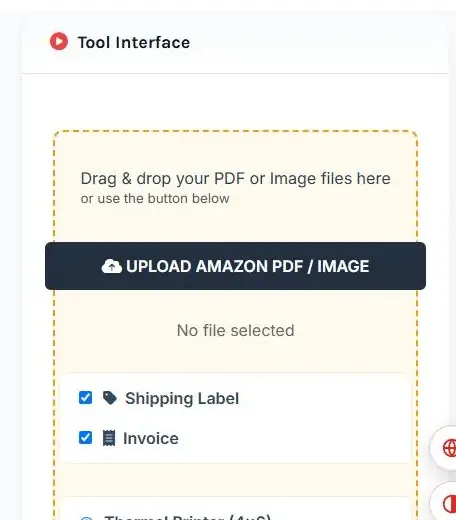
A Flipkart order PDF usually mixes shipping labels and invoices in one file. Printing it as it is means sorting pages by hand. The free Flipkart Label Cropper separates the labels from the invoices and gives you two print-ready files. This guide walks through it.
What the tool gives you
- A file with only the cropped shipping labels.
- A second file with the invoices, so you can print or archive them separately.
- Your choice of layout: Thermal Printer (4×6) for one label per page, or A4 Printer (4-in-1) for four labels on one A4 sheet.
How to crop Flipkart labels, step by step
- Download the order PDF from your Flipkart seller account and save it on your device.
- Open the tool: Flipkart Label Cropper.
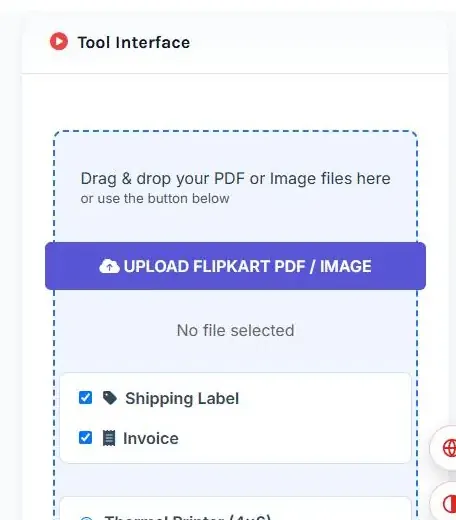
- Upload the PDF with the Upload Flipkart PDF button.
- Choose the printer layout: Thermal Printer (4×6) or A4 Printer (4-in-1).
- Click Process PDF. When the message Files Ready! appears, the work is done.
- Download Labels and Download Invoices separately. Use Reset if you want to start again with another file.
Tips before you print
- Open the labels file and check the first few pages. The address and barcode should be fully visible.
- Do a test print of one label before printing the whole batch.
- If your batch is large and the file is heavy, use Compress PDF on the invoices file before you email it.
- Also sell on Meesho or Amazon? Read the Meesho label guide and the Amazon label guide, or see all Seller Tools.
Why separate labels and invoices?
The shipping label goes on the parcel, while the invoice goes inside the package or is stored for your accounts. When both are mixed in one PDF you have to print everything and then sort the pages by hand, which is slow and easy to get wrong. Splitting them first means you print the labels on stickers and keep the invoices in a separate file for records, GST filing or customer requests.
Choosing the right layout
- Thermal Printer (4×6): best for sellers with a label printer. One label per page, no cutting needed.
- A4 Printer (4-in-1): best for a normal printer. Four labels on one sheet reduce paper use, and you cut the sheet into individual labels.
A quick checklist before printing a big batch
- Confirm that the number of pages in the labels file matches the number of orders you expected.
- Open a few labels at random and zoom in to check the barcode and address.
- Print one label and test that it scans if you have a barcode scanner or a phone scanning app.
- Set the print scale to 100 percent or “Actual size”.
- Print the full batch and keep the invoices file somewhere safe.
Storing and sharing the invoices file
Keep invoices in a folder named by month so they are easy to find later. If you send them to an accountant, you can protect the file with a password using our guide on how to password protect a PDF. For a bulk file that is too large to email, compress it first.
Common problems and fixes
- The process stays on loading. Very large PDFs need more memory. Split the file into smaller parts with Split PDF and process each part.
- A label looks cut off. Compare it with the original page. If the original is fine, try the other layout and download again.
- Labels print smaller than expected. Turn off “Fit to page” in the print settings.
- Only one file downloads. Use both the Download Labels and Download Invoices buttons. If one file is empty, the original PDF may contain only labels or only invoices.
Privacy
Your PDF is processed in your browser and is not uploaded to our servers. Read more in the Privacy Policy.
Frequently asked questions
Is the Flipkart Label Cropper free?
Yes, there is no signup and no watermark.
Why do I get two downloads?
The tool separates shipping labels from invoices, so each can be printed or stored on its own.
Which printers does it support?
It has a layout for 4×6 thermal printers and an A4 layout that places four labels on one page.
Do I need to install software?
No. It works in your browser on desktop and mobile.