Some places simply do not accept PDFs. A WhatsApp status, an Instagram post, a form that asks for a “JPG only” upload, a slide in your presentation: they all want an image. Our free PDF to JPG Converter turns every page of your PDF into its own JPG picture, so you can download just the page you need or grab all of them at once in a ZIP file.
How to Convert a PDF to JPG
- Open the PDF to JPG Converter on your phone or computer.
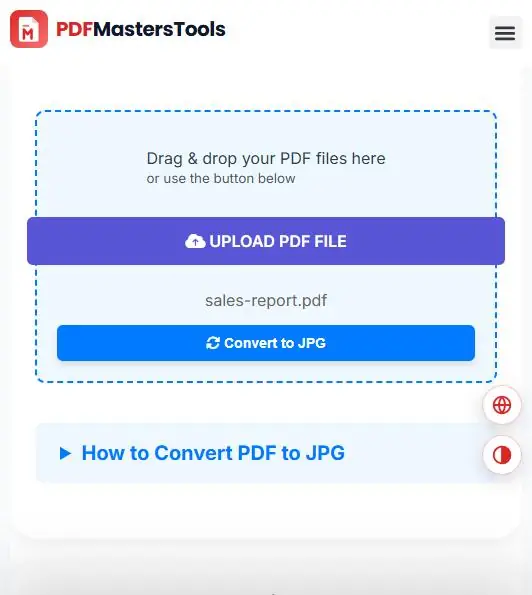
- Tap Upload PDF File and pick your PDF, or drag and drop it into the box. The file name appears under the button once it is loaded.
- Tap Convert to JPG.
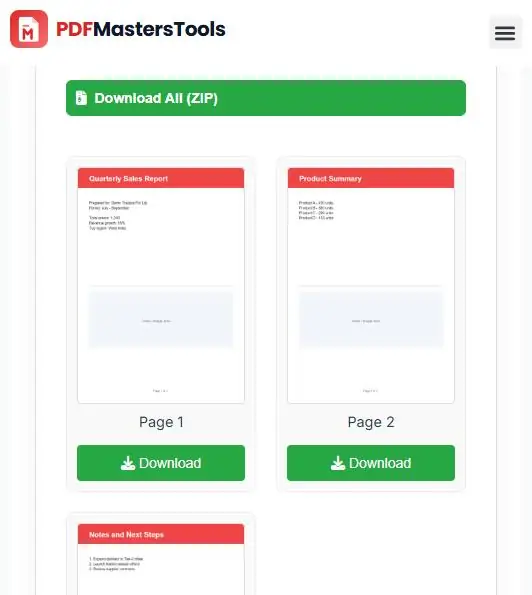
- In a few seconds you will see a preview of every page, labelled Page 1, Page 2 and so on.
- Tap Download under a page to save only that page as a JPG, or tap Download All (ZIP) to get every page in one ZIP file.
- Want to convert another file? Tap Reset and start again.
When Is PDF to JPG Useful?
- Sharing on social media and chat apps: a JPG opens instantly on any phone, while a PDF often has to be downloaded first.
- Online forms that only accept images: many job, exam and government portals ask for a certificate or ID “in JPG format”.
- Presentations and documents: drop a page of a report or a chart straight into PowerPoint, Google Slides or Word as a picture.
- Previews and thumbnails: show the first page of an e-book, brochure or menu on a website.
What Quality Will the JPG Images Be?
Each page is rendered at a sharper-than-screen size. In our test, a standard A4 page came out as a JPG of about 890 × 1260 pixels, which is clear enough to read normal text on a phone or a laptop and fine for most uploads. If a portal also has a file size limit in KB, run the JPG through our free Image Compressor or Image Resizer afterwards. Our guide on resizing photos for online application forms walks through hitting exact size limits.
Is My PDF Safe?
Yes. The conversion runs inside your browser, so your PDF is turned into images on your own device. There is no sign-up, and closing the page clears everything.
Frequently Asked Questions
Can I convert only one page of the PDF?
The tool converts every page, but you do not have to keep them all. Use the Download button under the page you want and ignore the rest. If you need to cut the PDF itself, see how to split a PDF into separate pages.
Can I convert several PDFs at once?
The converter works on one PDF at a time. Convert the first file, download your images, tap Reset and load the next one. If your pages are spread across several files, you can merge the PDFs first and convert them in one go.
My PDF asks for a password. What should I do?
A locked PDF has to be opened before it can be converted. If you know the password, follow our guide on removing a PDF password, then convert the unlocked copy.
What is the difference between PDF to JPG and Extract Images from PDF?
PDF to JPG takes a picture of each whole page, text and all. Extract Images from PDF pulls out only the photos and graphics that are inside the PDF, at their original size. Use the first to share a page, the second to reuse a photo.
Is this PDF to JPG converter free?
Yes, it is completely free, with no watermark and no account needed.
Related Tools and Guides
- PDF to PNG: the same idea, but saves PNG images, which suit text and diagrams with sharp edges.
- Merge PDF Pages into a Single Image: put all pages into one tall picture.
- Convert images to PDF: go the other way and turn JPG photos back into one PDF.
- Compress a PDF: shrink the PDF itself when it is too big to email.