Password-protected PDFs are great for keeping sensitive files private, but that same password can get in the way once you no longer need it — maybe you’re sharing the file with a team, archiving it, or simply tired of typing the password every time you open it. If you own the file and know its current password, our free Unlock PDF tool strips the protection in seconds, directly in your browser.
How to Remove a Password from a PDF
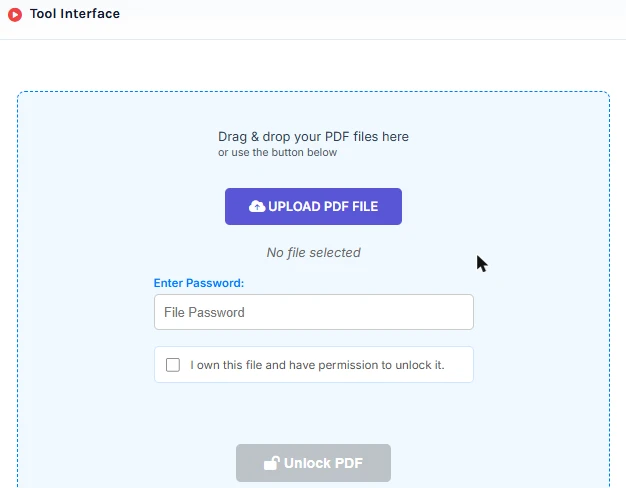
- Open the Unlock PDF tool.
- Click Upload PDF File and choose the protected PDF from your device.
- Type the file’s current password into the Enter Password field.
- Tick the box confirming you own the document or are authorized to remove its password.
- Click Unlock PDF and wait a few seconds while it processes.
- Download the unlocked file — it will now open instantly, with no password prompt.
Why You Might Need to Unlock a PDF
There are plenty of everyday, legitimate reasons to remove a PDF’s password: you’re consolidating old files into an archive, uploading a document to a system that can’t handle encrypted PDFs, merging it with other files, or simply no longer need the extra security step for a file that used to be sensitive but isn’t anymore. Removing the password doesn’t delete any content — it just removes the lock, leaving the PDF itself untouched.
Is It Safe to Unlock a PDF Online?
Yes — as long as you use a reputable tool and only unlock files you own or have permission to access. Our tool processes your file securely and does not store it after your session ends, so your document and its password stay private.
What If You Don’t Know the Password?
This tool is designed for files where you already know the password and simply want to remove it. If you’ve genuinely lost the password to your own file, you’ll need to try to recover it through whatever method you used to protect it originally (such as a password manager or the software that created the PDF) — removing a password without it isn’t something this tool, or any legitimate tool, is built to do.
Frequently Asked Questions
Does unlocking a PDF reduce its quality?
No. Unlocking only removes the password restriction — the text, images, formatting and layout of your PDF remain exactly the same.
Will the unlocked PDF still open on other devices?
Yes. Once the password is removed, the PDF opens normally on any device or PDF reader, with no password prompt at all.
Can I re-add a password later if I change my mind?
Yes — use our Password Protect a PDF guide any time you want to lock the file again with a new password.
Related PDF Security Tools
- Unlock PDF / Remove Password — remove a known password from a PDF.
- Password Protect a PDF — add a password to keep a PDF private.