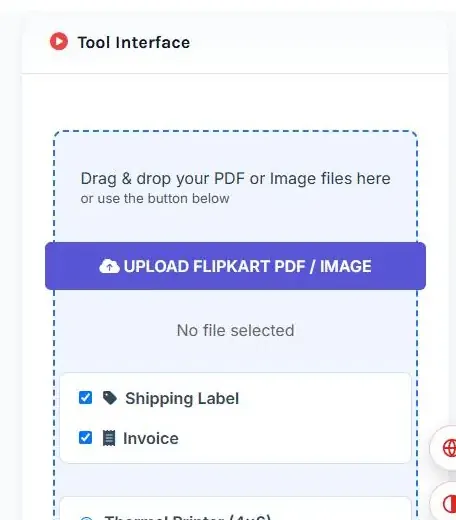
Amazon order PDFs often contain a shipping label and an invoice for every parcel, one after another. The free Amazon Label Cropper splits them for you, crops the labels and gives you print-ready files. Here is how to use it.
How the tool handles your PDF
The tool expects an Amazon order PDF with labels and invoices mixed together. It treats the odd pages as labels and the even pages as invoices, then gives you two separate downloads. That is why you should upload the file exactly as it came from your seller account, without reordering or deleting pages first.
How to crop Amazon labels, step by step
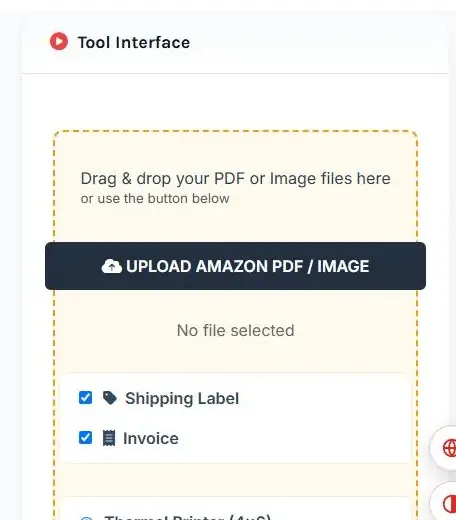
- Download the order PDF from your Amazon seller account.
- Open the tool: Amazon Label Cropper.
- Upload the PDF with the Upload Amazon PDF button.
- Choose the layout: Thermal Printer (4×6) for one label per page, or A4 Printer (4-in-1) for four labels on one A4 sheet.
- Click Process PDF and wait for Files Ready!.
- Download Labels and Download Invoices as separate files. Use Reset to process another PDF.
Tips before you print
- If the number of labels and invoices does not match, check that your original PDF has the label first and the invoice second for every order.
- Print one label as a test and scan the barcode before printing the full batch.
- To join several downloads into one file before cropping, use Merge PDF.
- Selling on other platforms too? See the guides for Meesho and Flipkart, or open the Seller Tools page.
Why labels and invoices need separate handling
In an Amazon order PDF, each parcel has a shipping label and an invoice. The label has to be stuck on the package, while the invoice is kept for your records or placed inside the box. Printing the whole PDF as it is wastes paper and forces you to sort pages manually. Splitting them into two files makes packing faster and keeps your records tidy.
Keep the original page order
Because the tool treats odd pages as labels and even pages as invoices, the order of pages matters. Do not delete, rotate or rearrange pages before uploading. If you must edit the file, make a copy and work on the copy. If the labels and invoices end up in the wrong files, upload the untouched original again.
Choosing between thermal and A4
- Thermal Printer (4×6): one label per page, ready for a label roll.
- A4 Printer (4-in-1): four labels per sheet for plain paper printers. Cut along the guides after printing.
A checklist before you print
- Count the pages of the labels file and compare with your order count.
- Check that the invoices file has the same number of pages as there are labels.
- Zoom in on a barcode to confirm it is sharp.
- Choose “Actual size” in the print dialog.
- Print one test label before running the full batch.
Common problems and fixes
- Counts do not match. The original PDF may be missing an invoice or label for one order, or may have extra pages. Download the PDF again from your seller account.
- Blank space around the label. Try the other printer layout and download again, then compare the results.
- The browser is slow. Close other tabs, or split a very large PDF into parts with Split PDF.
- You need to send invoices to a buyer. Extract only the needed pages from the invoices file and share them, ideally protected with a password.
Privacy
Your PDF is processed in your browser and is not uploaded to our servers. You can read more in our Privacy Policy.
Frequently asked questions
Is the Amazon Label Cropper free?
Yes. No account is needed and the result has no watermark.
Why are labels and invoices in separate files?
Labels go on the parcel and invoices are kept for records or sent to the buyer, so they are easier to handle apart.
Can it print four labels on one A4 page?
Yes, choose A4 Printer (4-in-1).
Does it work on a phone?
Yes, it runs in a mobile browser, but a computer makes it easier to check and print the final PDF.