You open a scanned PDF and try to copy a sentence, but nothing gets selected. That is because the file contains pictures of pages, not real text. OCR, short for Optical Character Recognition, reads those pictures and turns them into text you can search, copy and edit.
How to Use OCR on a PDF
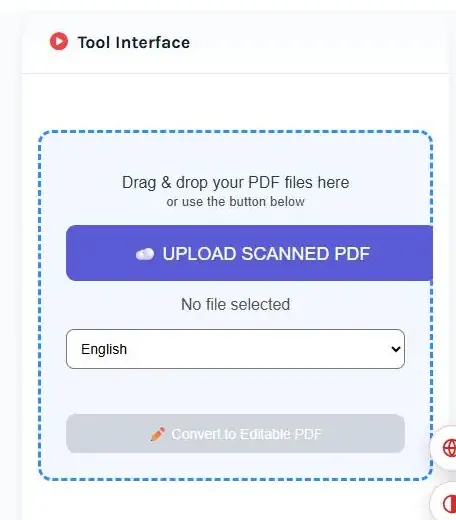
- Open the OCR PDF tool.
- Upload your scanned PDF or image.
- Choose the language of the text if asked.
- Start the process and wait for the text to be recognized.
- Download or copy the result and read it through for mistakes.
How to Get Accurate OCR
- Scan at 200 to 300 DPI. Lower quality scans make more errors.
- Keep pages straight. Tilted pages confuse the reader.
- Use good contrast. Dark text on a light background works best.
- Pick the right language. This matters a lot for non-English text.
- Avoid shadows and folds when you photograph a page.
What OCR Is Good For
- Searching old scanned records and books
- Copying text from printed documents into Word or Excel
- Making scanned files accessible for screen readers
- Preparing a scan for conversion to Word
How to Tell If a PDF Is Scanned
- Open the PDF and try to select a word with your mouse or finger. If nothing highlights, or a whole page highlights as one block, it is an image.
- Use the search function and look for a word you can see. If it finds nothing, the text is not real text.
- Zoom in a lot. Real text stays sharp, while scanned text becomes blurry or pixelated.
Step by Step Example
Imagine you have a 20 page scanned bank letter or an old textbook chapter. You upload it to the OCR tool, pick English as the language, and start the process. After it finishes you can copy paragraphs into a document, search for a name or a date, and keep the text for later. Read the output once, especially numbers such as account numbers, amounts and dates, because OCR can confuse similar looking characters like the number 0 and the letter O, or 1 and l.
Improving a Poor Scan Before OCR
- Rotate sideways pages with the Rotate PDF tool so the text is upright.
- Remove blank or unwanted pages using the Delete PDF Pages tool so the tool has less to process.
- Retake photos that have shadows, glare or cut off edges.
- Work in smaller parts for long books. Split the file with the Split PDF tool if it is slow.
OCR on Your Phone
The OCR tool works in a mobile browser. Take clear photos of your pages, upload them, and wait for recognition to finish. The work is done in your browser, so your documents are not uploaded to a server. This is helpful for private papers such as ID copies, medical reports and legal letters. There is no signup and no watermark.
Frequently Asked Questions
What does OCR stand for?
OCR stands for Optical Character Recognition. It is the technology that reads letters in an image and turns them into editable text.
Can OCR read handwriting?
Neat printed text works best. Handwriting is much harder and results vary a lot, so always check the output.
Can I use OCR for Hindi or other languages?
Choose the language of your document when the tool asks. Results are best for clean, printed text in the language you select.
What can I do with the text afterwards?
You can copy it into a document, search it, or use it to convert the file to Word for editing.
Limits to Know
OCR is very good with printed text but less reliable with handwriting, stamps, tables and unusual fonts. Always proofread important numbers and names before you use the result.