Bank statements, salary slips, contracts and personal records should not be open to everyone. Adding a password to a PDF means only people who know the password can open it. This guide shows how to protect a PDF and how to choose a strong password.
How to Add a Password to a PDF
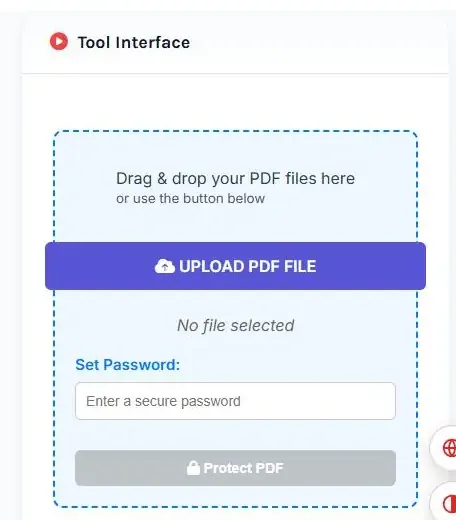
- Open the Protect PDF tool.
- Upload your PDF file.
- Type the password you want to use and confirm it.
- Click protect and download the secured file.
- Try opening the new file to make sure it asks for the password.
How to Choose a Strong Password
- Use at least 10 to 12 characters
- Mix upper and lower case letters, numbers and symbols
- Avoid names, birthdays and phone numbers
- Do not reuse a password from your email or bank account
Share the Password Safely
Never send the password in the same email as the file. Share it by a different channel, such as a phone call or a separate message. Keep a copy in a trusted password manager, because a lost password usually cannot be recovered.
Removing a Password Later
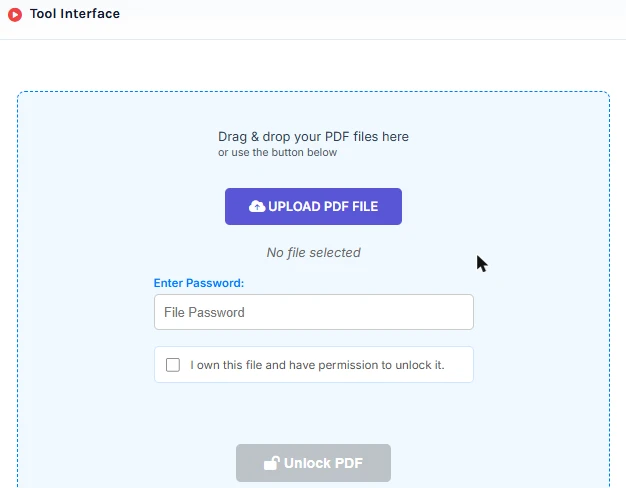
If you know the password and want to remove it, use the Unlock PDF tool. Upload the file, enter the password and download an unprotected copy. Only unlock files that belong to you or that you have permission to open.
When Should You Password Protect a PDF?
Any file that contains personal, financial or business information is a good candidate. Typical examples are bank statements, tax returns, salary slips, medical reports, rental agreements, resumes with your address and phone number, and business proposals. If a file is sent by email or chat, anyone who gets access to that message can read it. A password adds a second layer, so a forwarded or leaked file stays unreadable.
What a Password Does and Does Not Do
- It does stop people from opening the file without the password.
- It does work in common PDF readers, browsers and phone apps.
- It does not hide that the file exists, so do not put the password in the file name.
- It does not protect a copy you saved earlier without a password. Delete the unprotected version after you have checked the new one.
Protecting a PDF on Your Phone
The Protect PDF tool runs in your mobile browser. Open it, pick the file from your phone, type a password and download the secured copy. Because the work happens in your browser and the file is not uploaded, your document does not travel to anyone else’s server. There is no signup and no watermark, and files up to 1 GB are supported.
Good Habits for Handling Protected Files
- Use a different password for each important document or group of documents.
- Store the password in a password manager, not in a notes app that is shared with others.
- Open the protected file once yourself to confirm the password works.
- Tell the receiver which channel the password will come through before you send the file.
- Remove the password when it is no longer needed, using the Unlock PDF tool.
Frequently Asked Questions
What if I forget the password?
A forgotten password usually cannot be recovered, so keep it somewhere safe. If you still have the original unprotected file, simply protect it again with a new password.
Can I protect only some pages?
A password applies to the whole file. If only some pages are sensitive, separate them with the Split PDF tool and protect that part alone.
Will the file still be the same size?
The size stays almost the same. Protecting a PDF does not remove content or reduce quality.
Is my file uploaded anywhere?
No. The processing happens in your browser. See the privacy policy for details.
Related Security Tools
You can also redact sensitive text and sign documents. See our PDF Security Tools category.