A PDF is great for sharing, but difficult to edit. When you need to change text, fix a typo or reuse content, converting the PDF to a Word document is the easiest solution. This guide explains how to convert PDF to Word online and how to get clean results.
How to Convert PDF to Word
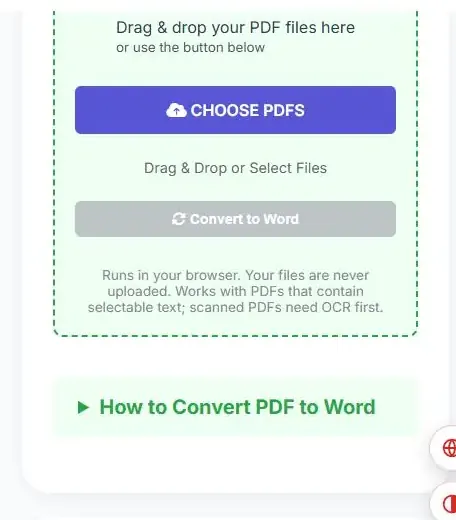
- Open the PDF to Word converter.
- Upload your PDF file.
- Click convert and wait for the file to process.
- Download the .docx file and open it in Microsoft Word, Google Docs or LibreOffice.
What Affects Conversion Quality?
- Text based PDFs convert best. If you can select and copy text in the PDF, the result will usually be accurate.
- Scanned PDFs contain pictures of text, not real text. Run them through our OCR guide first.
- Complex layouts with many columns, tables or text boxes may need small manual fixes.
- Fonts that are not installed on your computer will be replaced, which can change spacing slightly.
Tips After Converting
- Check headings, bullet lists and tables for alignment.
- Turn on spell check, since conversion can sometimes misread characters.
- Compare page count with the original to make sure nothing is missing.
- Save a copy before you start editing.
Why Convert PDF to Word?
A PDF is designed to look the same on every device, which is exactly why it is hard to change. Word documents are the opposite: they are made to be edited. People usually convert a PDF to Word when they need to update an old resume, reuse a paragraph from a report, correct a mistake in a contract draft, or translate a document. Converting is much faster than retyping, and it avoids new typing errors.
PDFMastersTools runs the conversion in your browser, so your file is not uploaded to a server. That matters for documents such as resumes, invoices and agreements. There is no signup and no watermark on the result, and the tool works on phones as well as computers.
Before You Convert: A Quick Checklist
- Try selecting a line of text in the PDF. If you can highlight it, the file has real text and will convert well.
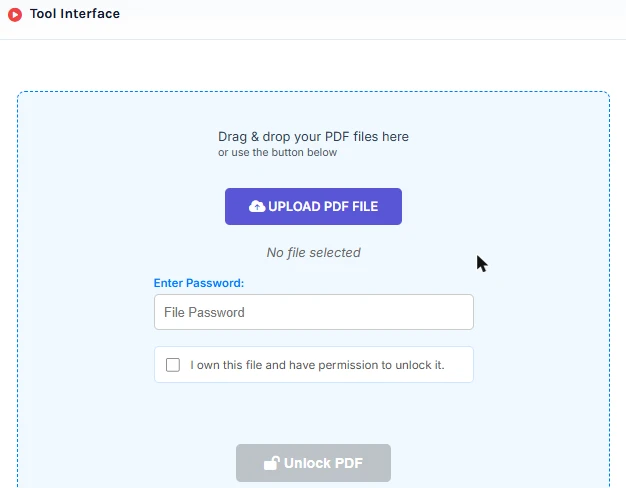
- If the PDF is password protected, remove the password first with the Unlock PDF tool, as long as you own the file.
- If the file is very large, split out only the pages you need with the Split PDF tool. Smaller files convert faster and are easier to check.
- Make sure you have a word processor installed, such as Microsoft Word, Google Docs or LibreOffice.
How to Fix Common Problems After Conversion
- Text jumps to the wrong place. This usually happens with text boxes. Select the box, open the layout options and set it to “In line with text”, or copy the text into the normal page body.
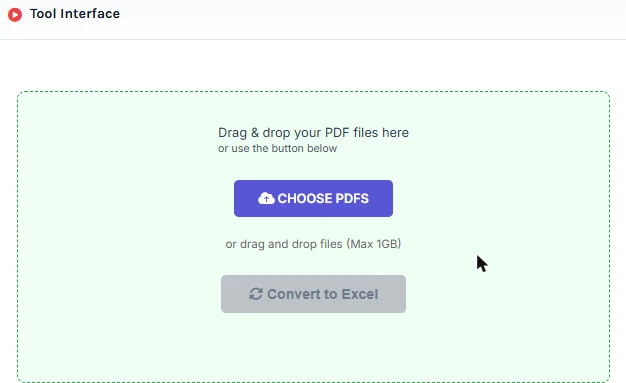
- Tables are not carried over. The tool keeps text and basic formatting, so tables arrive as plain text. Rebuild the table in Word, or use the PDF to Excel tool if the data is in rows and columns.
- Strange symbols appear. Special fonts can map to the wrong characters. Select the text and change it to a common font such as Arial or Calibri.
- Images are not included. Pictures in the PDF do not come into the Word file. Save them first with the Extract Images from PDF tool, then insert them into your Word document.
- The page count is different. This is normal because Word re-flows text. Adjust margins and font size if you need to match the original.
Converting a PDF to Word on Your Phone
You do not need a computer. Open the converter in your phone browser, choose the PDF from your files or downloads folder, and run the conversion. When it finishes, download the .docx file and open it in the Word app or Google Docs. Keep in mind that editing long documents is easier on a larger screen, so you may want to do the final formatting on a laptop.
Frequently Asked Questions
Will the formatting stay exactly the same?
The tool keeps your text and basic formatting. Images, tables and complex layouts are not carried over, so a document that is mostly plain text converts best. If your PDF depends on tables or pictures, expect to add them back in Word.
Can I convert a scanned PDF to Word?
A scanned PDF is just a picture of a page, so it needs text recognition (OCR) first. Follow our guide on extracting text from a scanned PDF, then edit the text in Word.
Is it safe to convert confidential files?
The tools run in your browser and your files are not uploaded, which keeps private documents on your own device. You can read more in our privacy policy.
Is there a file size limit?
You can work with files up to 1 GB. Very large files depend on your device memory, so close other tabs if the conversion feels slow.
Other Formats You Can Convert To
PDFMastersTools also converts PDF to Excel, PowerPoint, JPG, PNG, WEBP, text and more. Visit the Convert from PDF category to see every option.