Printing a form, signing it by hand and scanning it again wastes time and paper. You can sign a PDF directly on your phone or computer instead. This guide explains how to add a signature online and what to keep in mind.
Steps to Sign a PDF
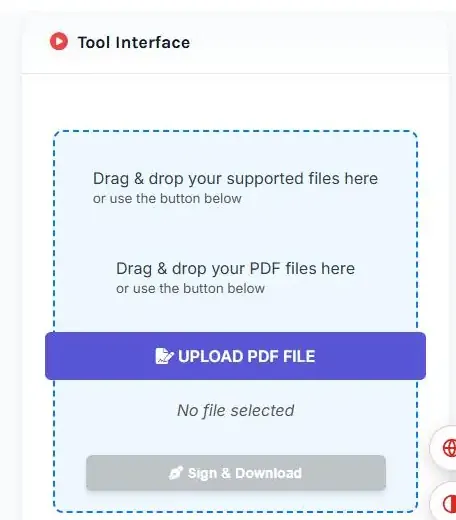
- Open the Sign PDF tool.
- Upload the document you need to sign.
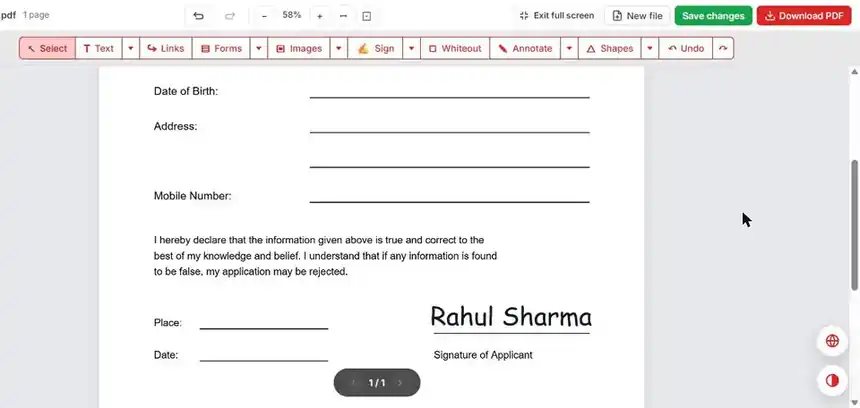
- Create your signature by drawing it, typing it or uploading an image of it.
- Place the signature where it belongs and resize it.
- Download the signed PDF.
Filling Forms Before Signing
Many documents also need names, dates and addresses. The Text Editing, Fill and Sign PDF tool lets you type text into the form fields and then add your signature in the same session.
Tips for a Professional Signature
- Sign on white paper with a dark pen, take a clear photo and upload it for a natural look
- Crop away the background so the signature sits cleanly on the page
- Keep the signature size similar to a handwritten one
- Check every page before downloading
Is an Online Signature Valid?
Electronic signatures are accepted for many everyday documents, but rules differ by country and by document type. Some legal documents may need a certified digital signature or a witness. If you are unsure, check with the person or office that asked for the signature. We are not a law firm and this is not legal advice.
Three Ways to Create Your Signature
- Draw it. Use your finger on a phone or a mouse or trackpad on a computer. A touchscreen gives the most natural result.
- Type it. Type your name and choose a handwriting style. It is quick, but looks less personal.
- Upload an image. Sign on white paper, photograph it in good light and upload the picture. This looks closest to a real pen signature.
Signing a PDF on Your Phone
You can sign a document without a laptop. Open the Sign PDF tool in your mobile browser, choose the file from your downloads or from a messaging app, draw your signature with your finger, drag it into place and download the result. The work happens in your browser and the file is not uploaded to a server, so contracts, offer letters and rental agreements stay on your device. There is no signup, no watermark and files up to 1 GB are supported.
A Simple Workflow for Contracts and Forms
- Read the whole document before you sign anything.
- Fill in your name, date and other details using the Fill and Sign PDF tool.
- Add your signature and any initials on the pages that need them.
- If the document has extra pages you do not need, remove them with the Delete PDF Pages tool.
- Download the signed copy and keep the original unsigned file as well.
- Send the signed PDF, ideally with a password, and share the password separately.
Common Mistakes to Avoid
- Signing over text. Place the signature on the signature line so it does not cover printed words.
- Forgetting a page. Contracts often need initials on every page. Scroll through the whole file before downloading.
- Leaving a huge signature image. A very large image can slow the file down. Resize it to a normal size.
- Sharing your signature image widely. Keep the image file private so nobody else can reuse it.
Frequently Asked Questions
Do I need to print the document?
No. You can fill in the details and sign entirely on screen, then send the PDF as it is.
Can I sign more than one page?
Yes. You can place your signature or initials on as many pages as the document needs.
Can I edit the signature after placing it?
You can move and resize it before you download. After the file is saved, keep your original unsigned copy so you can start again if needed.
Is this the same as a digital certificate signature?
No. Adding a drawn, typed or image signature is a simple electronic signature. A certificate based digital signature is a separate, more formal method that some legal and government documents require.
Protect the Signed File
After signing, consider adding a password. Our guide on how to password protect a PDF shows how.