A Word file can look different on every phone and computer: fonts change, lines shift and tables break. A PDF looks the same everywhere, which is why colleges, offices and job portals usually ask for one. Our free Word to PDF Converter turns a .docx file into a PDF in your browser, with no software to install and no sign-up.
How to Convert a Word Document to PDF
- Open the Word to PDF Converter.
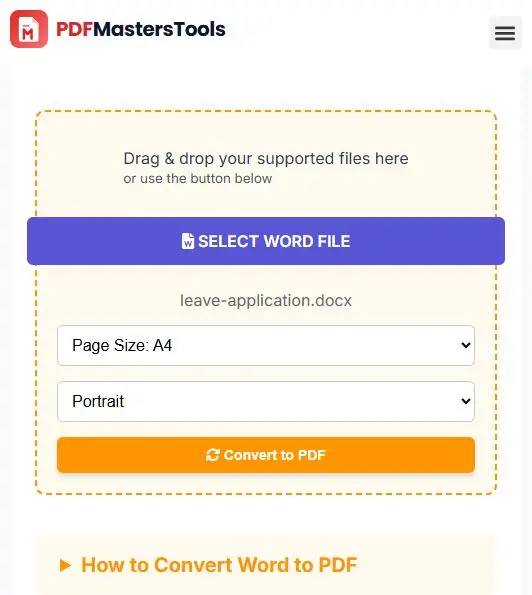
- Tap Select Word File and choose your .docx file, or drag and drop it into the box. The file name shows up once it is loaded.
- Pick a Page Size: A4 (standard in India and most countries) or Letter (common in the US).
- Pick an orientation: Portrait for letters, forms and reports, or Landscape for wide tables and timetables.
- Tap Convert to PDF.
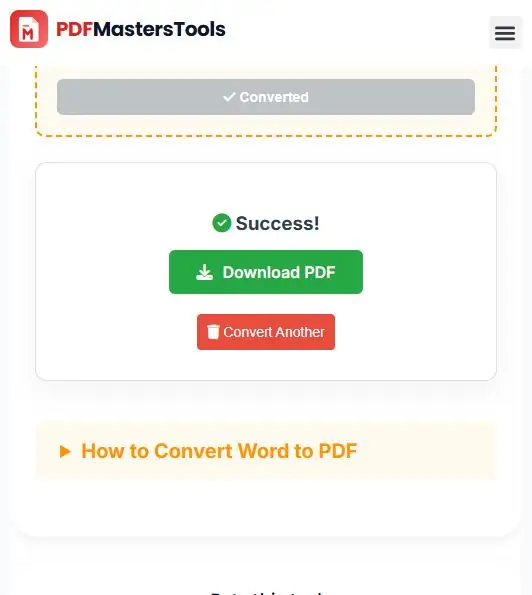
- When you see Success!, tap Download PDF to save the file.
- To convert another document, tap Convert Another.
Before you send the file anywhere, open the downloaded PDF once and scroll through it to check that everything looks right.
What Gets Carried Over From Word?
We tested the tool with a typical leave application containing a heading, normal paragraphs, a bulleted list and a small table. The text, headings, bold text, bullet points and the table all came through in the PDF.
The converter reads the content of your document and lays it out again on the page size you chose, so it works best for simple documents such as letters, applications, assignments, notes and resumes with a plain layout. Things that may not come out exactly as they look in Word include:
- headers, footers and page numbers
- text boxes, shapes and multi-column layouts
- unusual fonts, which may be replaced by a standard font
- exact page breaks
The pages of the finished PDF are saved as images of your document. That keeps the look identical on every device, but it also means you may not be able to select, copy or search the text in the PDF. If you need selectable text, or a pixel-perfect copy of a complex layout, use File → Save As → PDF in Microsoft Word, or File → Download → PDF in Google Docs.
Is My Document Safe?
Yes. The conversion happens in your browser, so your Word file is turned into a PDF on your own device. Nothing needs an account, and closing the page clears it.
Frequently Asked Questions
Does it work with old .doc files?
The tool accepts .docx files, which is the format Word has used since 2007. If you have an older .doc file, open it in Word or Google Docs and save it as .docx first, then convert it.
Can I convert Word to PDF on my phone?
Yes. The converter works in Chrome, Safari and other mobile browsers. Tap Select Word File, pick the document from your phone’s files or downloads, and the PDF will be saved to your downloads.
Should I choose A4 or Letter?
Choose A4 unless someone has specifically asked for Letter size. A4 is the standard paper size in India, the UK, Europe and most of the world. Letter is mainly used in the US and Canada.
The PDF is too big to upload. What can I do?
Run it through our free compressor. Our guide on compressing a PDF without losing quality explains how to get under upload limits.
Is this Word to PDF converter free?
Yes, it is completely free, with no watermark and no limit on how many files you convert.
Related Tools and Guides
- Convert PDF to Word: go the other way and turn a PDF back into an editable document.
- Sign a PDF online: add your signature to the converted PDF without printing it.
- Merge PDF files: combine your converted document with other PDFs into one file.
- Excel to PDF and PowerPoint to PDF: convert spreadsheets and slides as well.