Many email services and online forms limit attachments to 5 MB or 10 MB. A scanned PDF can easily be larger than that. Compressing a PDF reduces its size so you can send or upload it without trouble. Here is how to do it while keeping the document readable.
Why Are Some PDFs So Large?
- High resolution images: Photos and scans take the most space.
- Embedded fonts: Some files carry full font files inside.
- Many pages: Long documents naturally grow bigger.
- Hidden data: Metadata, thumbnails and old versions can add weight.
How to Compress a PDF Online
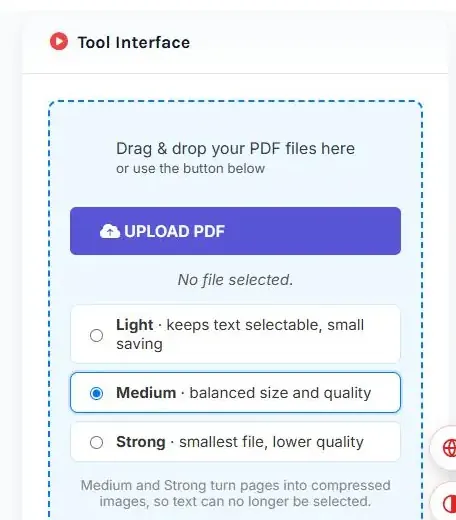
- Open the Compress PDF tool.
- Upload your PDF.
- Choose a compression level if the tool offers one.
- Start compression and download the smaller file.
- Open the result and zoom in to check that text and images still look good.
Choosing the Right Compression Level
- Light compression: Best for documents you will print or archive.
- Medium compression: A good balance for email and general sharing.
- Strong compression: Use for web uploads where small size matters more than image detail.
More Ways to Reduce File Size
- Remove pages you do not need with the Delete PDF Pages tool.
- Scan at 150 to 200 DPI instead of 600 DPI for normal documents.
- Split a very large file into parts using our split PDF guide.
Know the Size Limit Before You Start
Limits differ from site to site. Government, job and college portals often accept uploads of only a few MB, and some ask for a photo or signature below 200 KB. Email is more relaxed, since Gmail allows attachments of up to 25 MB in total at the time of writing. Always read the limit printed next to the upload button, then compress to a little below it so the file is accepted without trouble.
Scanned PDFs vs Text PDFs
A PDF saved from Word or a website is mostly text and shrinks only a little, because text takes very little space to begin with. A scanned PDF is a stack of page photos, so it often shrinks a lot. If a scan is still large after compression, the scan settings are the real cause, and rescanning at a lower resolution will help more than any tool.
Example: Getting a 12 MB Scan Under 2 MB
- Remove blank or unwanted pages first with the Delete PDF Pages tool.
- Compress with a medium setting and download the result.
- Zoom into the smallest text and any stamps or signatures to check they are still readable.
- If the file is still above the limit, compress again with a stronger setting, or rescan at 150 to 200 DPI.
- Keep your original file safe so you can try a different setting later.
Merge First, Compress Once
If you plan to join several files, merge them first and compress the final file once. Compressing the same pages again and again can make images look rougher each time. One careful pass at the end gives the cleanest result.
Frequently Asked Questions
Why did my PDF barely get smaller?
The file may already be optimized, or it may be mostly text with few images. In that case there is little to remove. Try deleting unneeded pages or rescanning at a lower resolution.
Is it safe to compress a confidential PDF?
The tools on PDFMastersTools run in your browser, so your files are not uploaded to our servers. Our Privacy Policy explains this in more detail.
Does compression change my original file?
No. You download a new, smaller file and your original stays as it was. Keep the original in case you need full quality later, for example for printing.
Can I compress a password protected PDF?
Unlock it first if you know the password, then compress it, and add the password again afterwards using our guide on how to password protect a PDF.
Will Quality Drop?
Text stays sharp in most cases. Images may lose a little detail, because compression works by reducing image quality and removing extra data. If the result looks too soft, try a lighter setting and compare both files before deciding.