Sending five separate PDF files in one email is messy. A single combined document is easier to read, share and print. In this guide you will learn how to merge PDF files online for free, what to check before you merge, and how to avoid the most common problems.
When Should You Merge PDF Files?
Merging makes sense whenever related pages live in different files. Common examples include:
- Combining scanned pages into a single application or form
- Joining a cover letter, resume and certificates into one job application
- Putting invoices or receipts for a month into one file for accounting
- Assembling chapters or reports into a single booklet
How to Merge PDFs With PDFMastersTools
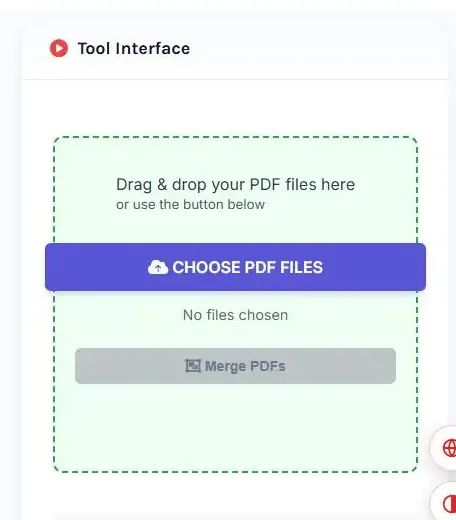
- Open the Merge PDF tool.
- Click Choose PDF files and select every file you want to combine. You can also drag and drop them.
- Check the order of the files. The final document follows the same order.
- Click Merge PDFs and wait a few seconds.
- Download the combined file and check that all pages appear correctly.
Tips for a Clean Result
- Name your files in order. Using 01, 02, 03 at the start of file names makes it easy to keep the right sequence.
- Check page size. If one file is A4 and another is Letter, pages may look different in the merged file. Convert them to the same size first if it matters.
- Remove password protection first. Locked files cannot be merged until they are unlocked.
- Compress afterwards if needed. A merged file can become large. Use the Compress PDF tool to reduce its size before emailing.
Is It Safe to Merge PDFs Online?
Privacy is a fair concern, especially for ID proofs, contracts or financial papers. The tools on PDFMastersTools run in your browser, so your files are not uploaded to our servers. For highly sensitive documents, it is still a good habit to avoid public computers. You can read more in our Privacy Policy.
Common Problems and Fixes
- The merge fails: One of the files may be damaged or password protected. Try opening each file separately first.
- Pages are in the wrong order: Merge again after reordering the files, or use the Reorder PDF Pages tool.
- The file is too big: Merge in smaller batches, or compress each file before merging.
Merging PDFs on Your Phone
You do not need a computer to merge PDF files. The tool works in the browser on Android and iPhone, so you can combine documents straight from your phone. Open the Merge PDF page in Chrome or Safari, tap the file picker and choose the files from your Downloads folder or your Files app. If a document is stored in WhatsApp, email or cloud storage, save it to your phone first so it shows up in the file list.
Phones have less memory than computers, so very large files can feel slow. If the page struggles, merge a few files at a time and then merge the results together, or switch to a computer for big jobs.
Example: Building a Job Application Pack
Many job and admission portals accept only one upload. Here is a simple workflow that works well for this situation:
- Save each document as its own PDF: cover letter, resume, degree certificate, mark sheets and ID proof.
- Rename the files 01-cover-letter.pdf, 02-resume.pdf and so on, so the order is obvious.
- Merge them with the Merge PDF tool.
- Open the merged file and scroll through every page to confirm nothing is missing, sideways or upside down.
- If the portal has a size limit, run the result through the Compress PDF tool.
- If the pack contains an ID proof, consider locking it with a password first. Our guide on how to password protect a PDF shows how.
What to Check After You Merge
- Page count: Add up the pages of your source files and compare the total with the merged file.
- Page orientation: Scanned pages sometimes come out sideways. Fix them with the Rotate PDF Pages tool.
- Links, bookmarks and form fields: Depending on how a PDF was created, bookmarks or fillable fields may not carry over perfectly. Test any clickable parts before you send the file.
- File name: Save the result with a clear name such as Application-Pack-2026.pdf so the receiver can find it easily.
Frequently Asked Questions
How many PDF files can I merge at once?
The tool works with files up to 1 GB. Because everything runs in your browser, very large sets are quickest on a computer. If your device slows down, merge in smaller groups and then merge the results.
Will merging reduce the quality of my pages?
Merging joins existing pages rather than redrawing them, so quality should stay the same. Compression is a separate step that you choose to run, and you can compare both files before using either.
Can I merge a PDF with photos?
Yes. Read our guide on how to combine files into one PDF, which covers mixing PDFs and images in one document.
Do I need to create an account?
No. You can use the tool without signing up, and the merged file has no watermark.
Can I change the page order after merging?
Yes. Open the merged file in the Reorder PDF Pages tool, drag pages into the order you want and download the updated file.
Conclusion
Merging PDFs takes less than a minute when you use the right tool. Pick your files, set the order, merge and download. If you want to mix PDFs with photos in one file, see how to combine files into one PDF. If you also need to cut a large file into parts, read our guide on how to split a PDF.