Photos of documents, screenshots and scans are usually saved as JPG or PNG. But many offices, colleges and government portals ask for a PDF. Converting images to PDF is quick, and you can put many images in one file. Here is how.
Steps to Convert Images to PDF
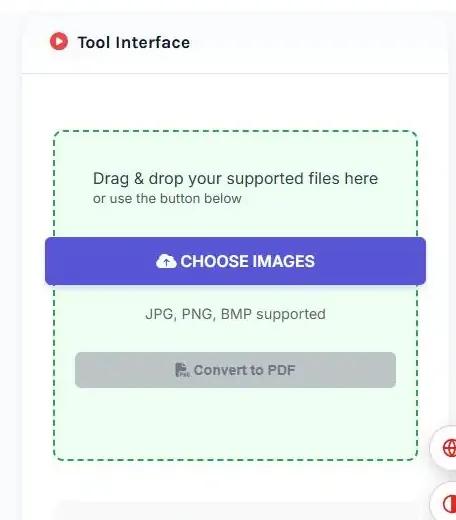
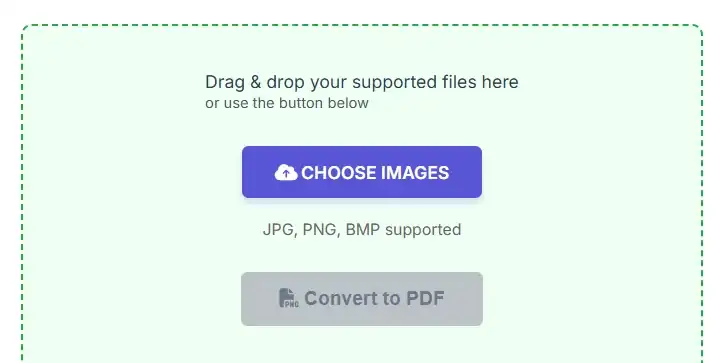
- Open the Image to PDF tool.
- Select one or more images from your device.
- Arrange them in the order you want the pages to appear.
- Click convert and download your PDF.
Get Better Results
- Use clear photos. Take pictures in good light and keep the page flat.
- Crop first. Remove extra background so the document fills the page.
- Keep the same orientation. Rotate sideways photos before converting.
- Watch the file size. Very large photos create heavy PDFs. Resize images or compress the PDF afterwards.
Common Uses
- Submitting ID proofs and certificates for online applications
- Turning phone photos of notes into a single study document
- Sending receipts and bills as one file
- Saving screenshots as a shareable report
Why Use PDF Instead of Sending Images?
Sending ten separate photos is messy. They can arrive out of order, some may be compressed by messaging apps, and the receiver has to open each one. A single PDF keeps every page in the right order, looks the same on every device and is easy to print. Many portals, such as job applications, college admissions and bank KYC forms, accept only PDF uploads for exactly this reason.
Preparing Photos of Documents
- Place the document on a flat, plain surface with good light. Avoid shadows from your phone or hand.
- Hold the camera directly above the page so the edges are straight.
- Take one photo per page and check that all four corners are visible.
- Crop away the table or background in your gallery app.
- Rename the files with numbers such as page1, page2, page3 so they stay in order.
Converting Images to PDF on Your Phone
The Image to PDF tool works in a mobile browser. Open it, tap to select images from your gallery, drag them into the right order and convert. The PDF is created on your device and your pictures are not uploaded to a server, so personal documents such as Aadhaar or PAN card copies stay private. There is no signup and no watermark.
Common Mistakes to Avoid
- Mixed orientation. Some pages end up sideways. Rotate photos first, or fix the finished file with the Rotate PDF tool.
- Wrong page order. If you notice it later, use the Reorder PDF Pages tool instead of starting again.
- File too large for the portal. Many websites limit uploads to 1 or 2 MB. Run the result through the Compress PDF tool.
- Blurry text. Low light and camera shake make text unreadable. Retake the photo instead of trying to fix it later.
Frequently Asked Questions
Can I put many images into one PDF?
Yes. Select all the images together, arrange them, and the tool creates one PDF with one image per page.
Will the image quality go down?
Your images are placed in the PDF as they are, so quality stays the same. If the file becomes too large, you can compress it afterwards and choose how much quality to trade for size.
Do I need to create an account?
No. The tool is free, needs no signup and adds no watermark.
Can I add a scanned page and a typed document together?
Yes. Convert the images to a PDF first, then join it with your other PDF using the Merge PDF tool.
Which Image Formats Work?
JPG and PNG are the most common and work well. Many tools also accept other formats such as WEBP. If your image will not upload, convert it to JPG or PNG first and try again. To mix images with existing PDFs in one file, see our guide on combining files into one PDF.