If you have a resume saved as a PDF, a cover letter in another PDF and a scanned certificate as a photo, most job portals still want everything in one file. This guide shows how to put them together with the free Combine Files into One PDF tool on PDF Masters Tools, step by step, using screenshots of the actual tool.
What you can combine
The tool accepts PDF, PNG, JPG/JPEG, HEIC, HEIF and TXT files. You can mix these types in one go, for example two PDFs and one photo, and the result is a single PDF. If you only need to join PDFs, the Merge PDF tool does the same job.
How to combine files into one PDF
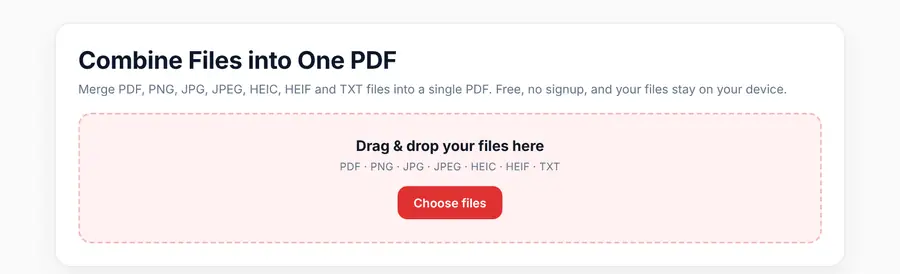
- Open the tool. Go to the Combine Files into One PDF page. The same tool is also at the top of the home page.
- Add your files. Drag and drop them into the box, or click Choose files and pick them from your device.
- Check the page thumbnails. Every page of every file appears as a small preview, so you can see exactly what will end up in the final PDF.
- Arrange the pages. Drag pages into the order you want. Use Rotate for a sideways scan and Delete for a page you do not need.
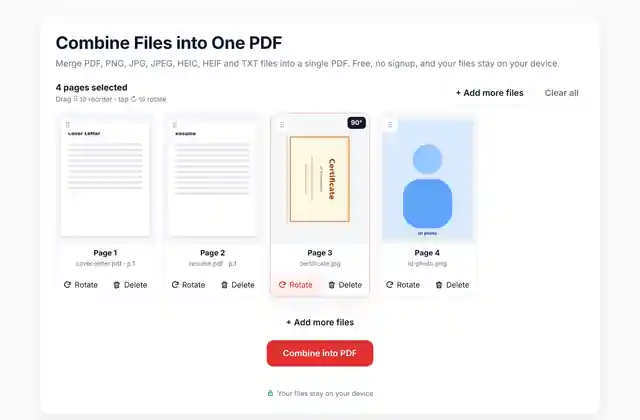
- Combine. Click Combine into PDF. Use Clear all if you want to start again.
- Check the download. The finished file is downloaded automatically as combined.pdf. Open it once to confirm the page order.
Tips for a clean result
- Name your files 1, 2, 3 before uploading so they load in the right order.
- Photos taken with a phone can be large. If the final PDF is too big for an upload form, run it through Compress PDF.
- If you only need some pages from a long document, use Split PDF first.
- Always review the final file before sending it, especially for official applications.
Common situations where you need this
- Job applications: resume, cover letter and certificates in one file, as many portals allow only a single upload.
- College admissions and exams: mark sheets, ID proof and photos combined into one document.
- Bank and loan forms: address proof, income proof and ID copies sent together.
- Office and invoices: several bills or receipts joined into one file for reimbursement.
- Study notes: phone photos of handwritten notes joined with typed PDF material.
Combining files on your phone
The tool works in a mobile browser. Tap Choose files, select your PDFs and photos from the gallery or the downloads folder, check the thumbnails, and combine. Because the work happens in your browser, your documents are not uploaded to a server. This matters when the files contain ID cards or financial papers. There is no signup and no watermark, and files up to 1 GB are supported.
A checklist before you combine
- Rename files with numbers (1, 2, 3) so they load in the right order.
- Straighten sideways photos using Rotate in the thumbnail view.
- Delete blank or duplicate pages so the final file is clean.
- Check the file size limit of the portal you will upload to.
- After combining, open the PDF and scroll through every page once.
Common mistakes and fixes
- Pages in the wrong order. Drag the thumbnails before combining, or fix the finished file with the Reorder PDF Pages tool.
- The file is too big to upload. Use Compress PDF. Photos taken on modern phones are the usual reason for large sizes.
- A password protected PDF will not load. Remove the password first with the Unlock PDF tool, if the file is yours.
- Text in a TXT file looks plain. A TXT file has no design, so it becomes simple text pages. For a styled document, use a PDF instead.
Related guides
For joining only PDFs, read how to merge PDF files online. For turning photos into a PDF, see how to convert images to PDF. To keep the result private, see how to password protect a PDF.
Privacy
Files are processed in your browser and are not uploaded to our server. You can read more in our Privacy Policy.
Frequently asked questions
Is Combine Files into One PDF free?
Yes, you can use it for free without creating an account.
Can I combine images and PDFs together?
Yes. PDF, PNG, JPG/JPEG, HEIC, HEIF and TXT files can be mixed in one combined PDF.
Can I change the order of pages?
Yes. Drag the thumbnails into the order you want before combining.
Do I need to install any software?
No. The tool runs in your web browser on desktop and mobile.
Why is my combined PDF large?
High-resolution photos make the file bigger. Use Compress PDF afterwards to reduce the size.