Large PDFs are hard to share. Maybe you only need pages 4 to 9 of a long report, or you want each chapter as its own file. Splitting a PDF solves this. This guide shows you how to split a PDF online for free and when each method is useful.
Ways to Split a PDF
- By page range: Keep only the pages you need, for example 3-7.
- Every page separately: Get one file per page, useful for scanned bundles.
- Extract selected pages: Pick specific pages such as 1, 5 and 12 into a new file.
Step-by-Step: Split a PDF
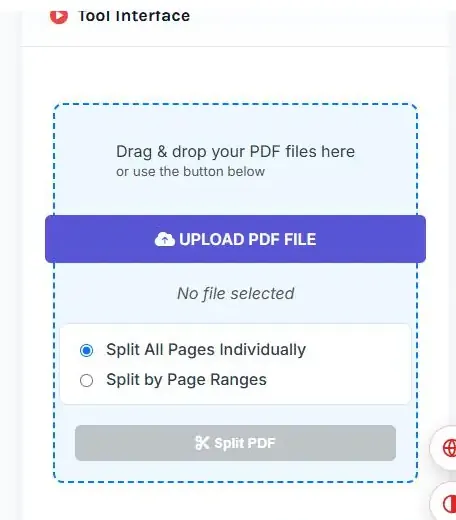
- Open the Split PDF tool on PDFMastersTools.
- Upload your PDF file.
- Enter the page numbers or ranges you want to keep.
- Click the split button and wait for processing.
- Download the new file or files and open them to confirm the pages are right.
Practical Uses
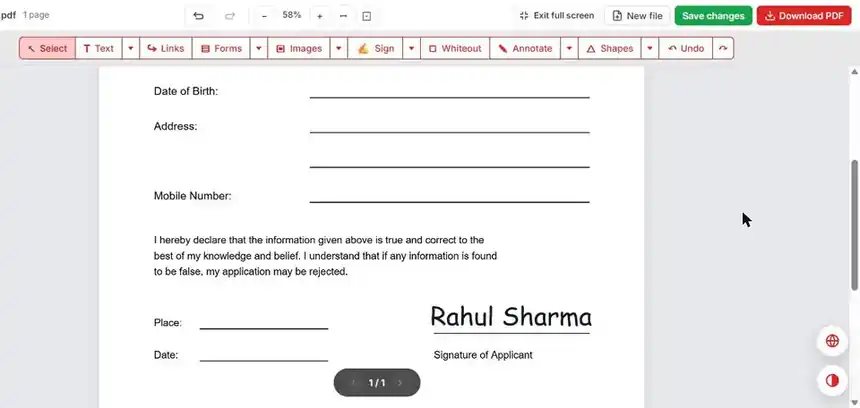
- Send only the signed page of a contract instead of the whole document
- Separate a scanned bundle of different documents into individual files
- Share one chapter of a study guide without sending the entire book
- Reduce file size by removing pages you do not need
Things to Remember
- Page numbers on the printed page can differ from the PDF page count. Always use the page number shown in your PDF viewer.
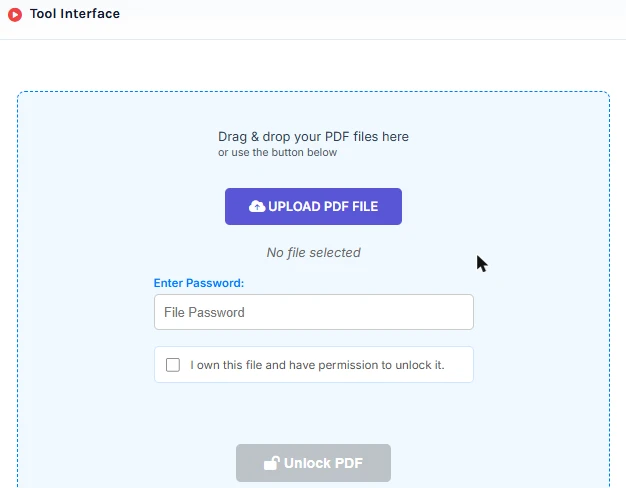
- Password protected PDFs must be unlocked before you can split them.
- Your original file stays unchanged. You get new files.
How to Write Page Ranges
A range is two page numbers joined by a dash. For example, 3-7 means pages 3 through 7. Single pages are usually separated by commas, such as 1, 5, 12, and you can combine both styles, for example 1-3, 8, 10-12. Check the hint text on the tool page for the exact format it expects before you start.
Always count pages the way your PDF viewer does. A book may print page 1 on what is really the 9th page of the file, and the tool follows the file, not the number printed on the paper.
Split by Range or Split Every Page?
- Split by range is best when you know which pages you want, such as the signed page of a contract or one chapter of a book.
- Split every page is best for a scanned bundle where each page is a separate document, such as a set of receipts scanned in one go.
- Extract selected pages is best when the pages you need are scattered, for example pages 1, 14 and 30 of a long policy document.
Example: Sending Only the Pages a Form Asks For
Imagine you have a 60-page insurance policy but a claim form needs only the first page and the page with your policy details. Sending all 60 pages is slow and shares more than necessary. Split the file, extract the two pages, check them in your viewer and attach the small file instead. The receiver gets exactly what they need, and the rest of your document stays private.
The same idea helps students. A scanned bundle of notes for five subjects can be split into five files, one per subject, so each can be shared with the right classmate.
Common Mistakes to Avoid
- Using the printed page number instead of the PDF page number, which gives you the wrong pages.
- Forgetting to unlock the file. A protected PDF must be unlocked first. See our Unlock PDF tool if you know the password.
- Not checking the result. Open each new file and confirm the first and last page are the ones you expected.
- Losing track of file names. Rename the new files right away, for example policy-page-1-and-14.pdf.
Frequently Asked Questions
Does splitting change my original PDF?
No. Your original file stays as it is, and you receive new files with the pages you chose.
Can I split a scanned PDF?
Yes. A scanned PDF is made of page images, and each page can be extracted like any other. If you also want to search or copy the text, run the pieces through our OCR guide afterwards.
Is there a file size limit?
You can work with files up to 1 GB. Since the tool runs in your browser, very large files are quickest on a computer.
Will the split pages lose quality?
Splitting takes pages out of the file rather than redrawing them, so text and images should look the same as in the original.
Split and Merge Together
Splitting and merging work well together. Split out the pages you need from several files, then merge them into one document. If you want to remove pages instead of extracting them, try the Delete PDF Pages tool.