You scan a document and one page comes out sideways. You merge two files and the pages end up in the wrong order. You download a long report and only need half of it. These are some of the most common PDF problems, and all of them can be fixed in a minute without installing any software.
In this guide you will learn how to rotate, reorder and delete pages in a PDF online, in what order to do these steps, and how to avoid the mistakes that waste time.
Why Page Management Matters
A PDF is often the final version of a document that you send to a teacher, a client, an office or a government portal. A sideways page or a missing page can make the whole file look careless, and some portals reject files that are not in the expected order. Cleaning up the pages before you send the file takes very little effort and avoids rework later.
How to Rotate Pages in a PDF
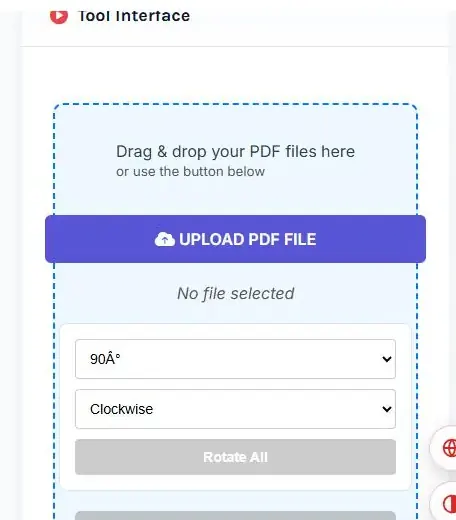
Sideways pages usually come from phone scans or from documents that mix portrait and landscape pages. Here is how to fix them permanently:
- Open the Rotate PDF Pages tool and upload your PDF.
- Look at the page thumbnails and find the pages that are turned the wrong way.
- Rotate those pages 90 degrees left or right, or 180 degrees if they are upside down.
- Download the new PDF and open it once to check every page.
Tip: Rotating a page inside your PDF viewer is usually temporary. The next time you open the file, or when someone else opens it, the page can be sideways again. Rotating the page with a tool and saving a new file makes the change permanent.
How to Reorder Pages in a PDF
Reordering is useful when you combine files from different sources, or when you want a cover page, an index or a signature page to come first.
- Upload the PDF to the Reorder PDF Pages tool.
- Drag the page thumbnails into the order you want.
- Check the new sequence from the first page to the last.
- Save and download the reordered file.
If the pages are out of order because you joined several files, it can be easier to fix the order before merging. Our guide on how to merge PDF files online explains how to arrange files correctly from the start.
How to Delete Pages from a PDF
Removing pages is helpful when a file contains blank pages, duplicate scans, an unwanted cover sheet or pages with information you do not want to share.
- Open the Delete PDF Pages tool, upload the PDF and view the page thumbnails.
- Select the pages you want to remove, or type their numbers, for example 2, 5 or 7-9.
- Apply the change and download the new PDF.
If you would rather keep only a few pages and discard the rest, you can also extract them. See how to split a PDF into separate pages or ranges for that method.
Tip: Always keep your original file. When you delete pages, you create a new PDF, so the original stays safe and you can go back if you remove the wrong page.
The Best Order to Do Everything
If your PDF needs more than one fix, working in the right order saves effort:
- Delete first. Remove blank and unwanted pages so you do not waste time fixing them.
- Rotate next. Straighten the pages that remain.
- Reorder last. Arrange the final pages in the sequence you need.
- Compress if needed. If the file is too large to email or upload, read our guide on compressing a PDF without losing quality.
Common Problems and Quick Fixes
- The rotation did not stay. You probably rotated the view in your PDF reader. Rotate with a tool and save a new file instead.
- I deleted the wrong page. Go back to your original file and repeat the steps with the correct page numbers.
- The file will not open or upload. If the PDF is password protected, you need to unlock it before changing the pages.
- Page numbers look wrong after reordering. Numbers that are printed on the pages do not change when you move the pages. Add fresh page numbers after you finish the final order.
Is It Safe to Edit PDFs Online?
It is a fair question, especially for documents with personal details. The tools on PDFMastersTools run in your browser, so your files are not uploaded to our servers. You can read the details in our Privacy Policy. For very sensitive documents, it is still a good habit to remove personal pages first and to avoid using public computers.
Frequently Asked Questions
Can I rotate only one page instead of the whole PDF?
Yes. You can rotate selected pages and leave the rest as they are.
Does deleting pages reduce the file size?
Usually yes, because the removed pages and their images are no longer in the file. The reduction depends on how large those pages were.
Will the quality of my pages change?
No. Rotating, reordering and deleting only change how the pages are arranged. The text and images on each page stay the same.
Do I need to create an account?
No. The tools on PDFMastersTools work without signup.
Final Thoughts
Managing the pages of a PDF does not need heavy software. With a few clicks you can straighten sideways scans, fix the page order and remove what you do not need, then send a clean and professional file. Browse all of our free tools on the tools page and pick the one that fits your task.